OSQR — SMS Opt-In Flow
This page documents exactly how end users consent to receive SMS messages from OSQR (OSQR Labs LLC), for A2P 10DLC campaign review. The opt-in occurs inside the OSQR web application at app.osqr.ai after the user has signed in, so it is not publicly reachable without an account — the screenshots below show the complete flow.
See also our Privacy Policy and Terms of Service.
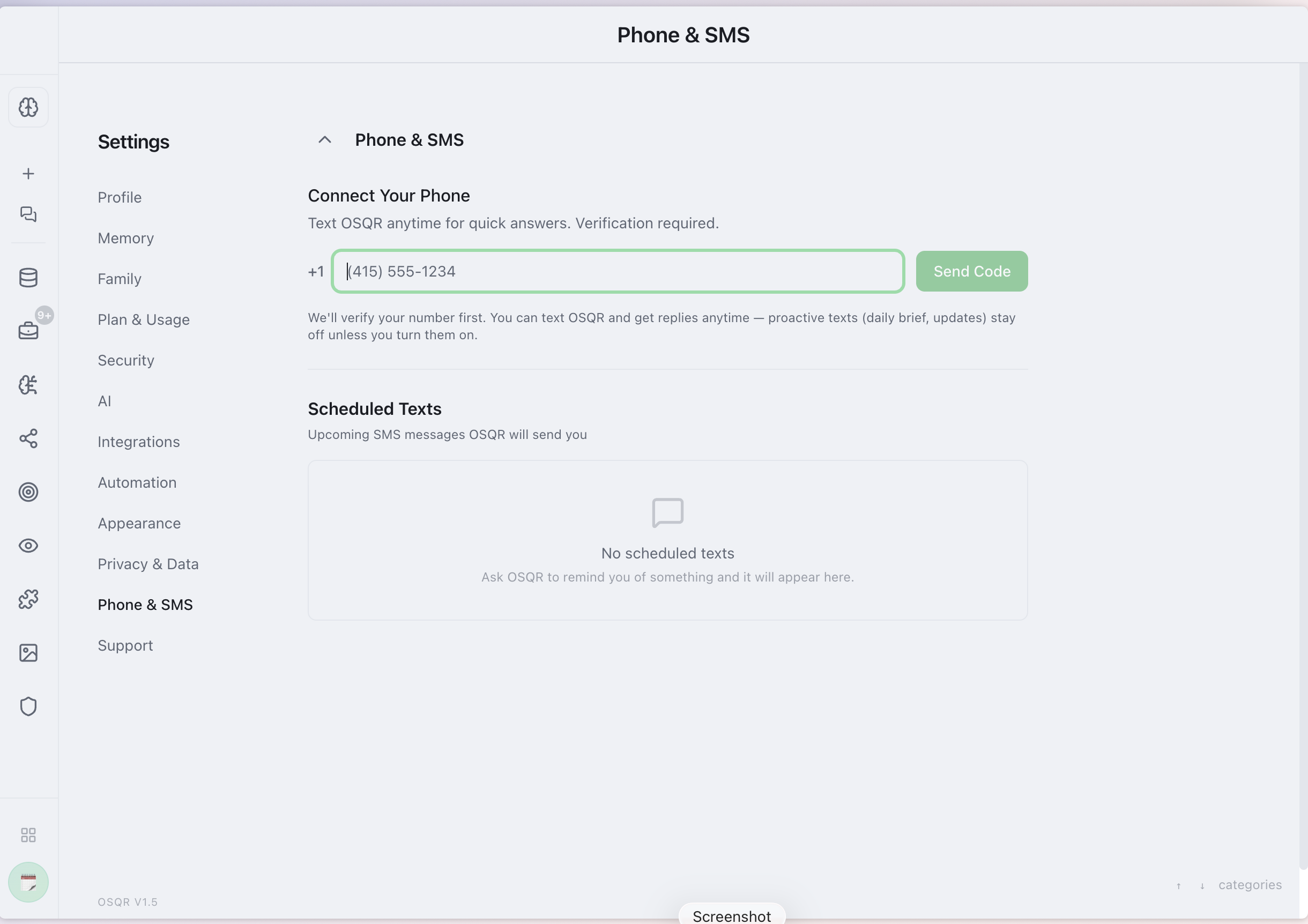
1Connect Your Phone (in Settings, after sign-in)
A signed-in user opens Settings → Phone & SMS and chooses to connect their own mobile number. Verification is required, and proactive texts stay OFF unless the user explicitly turns them on.
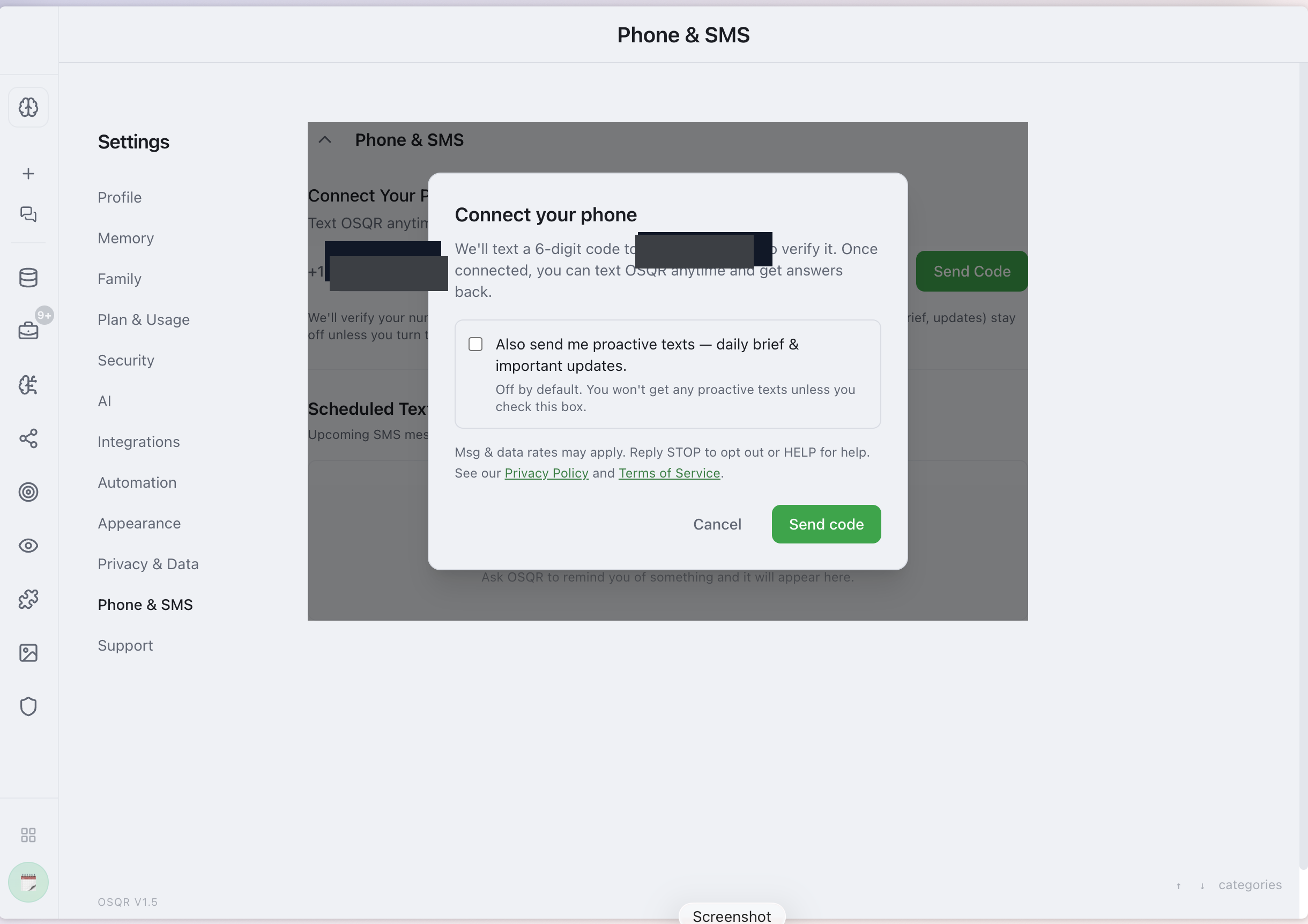
2Explicit consent checkbox — unchecked by default
Before any code is sent, the user sees a consent checkbox that is UNCHECKED by default: "Also send me proactive texts — daily brief & important updates. Off by default. You won't get any proactive texts unless you check this box." The disclosure reads: "Msg & data rates may apply. Reply STOP to opt out or HELP for help," with links to the Privacy Policy and Terms of Service. SMS consent is optional and is never required to create an account or use OSQR.
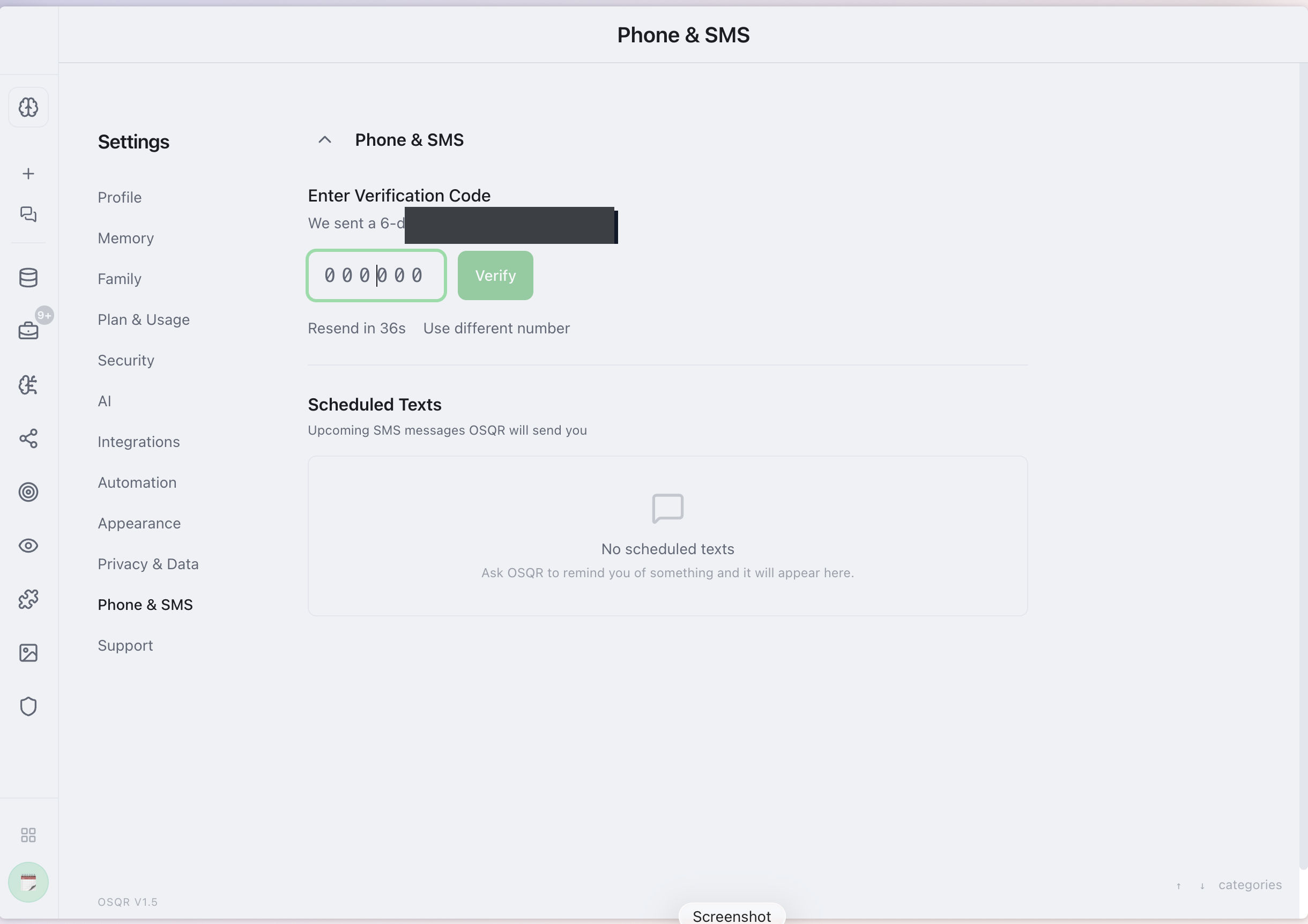
3One-time verification code
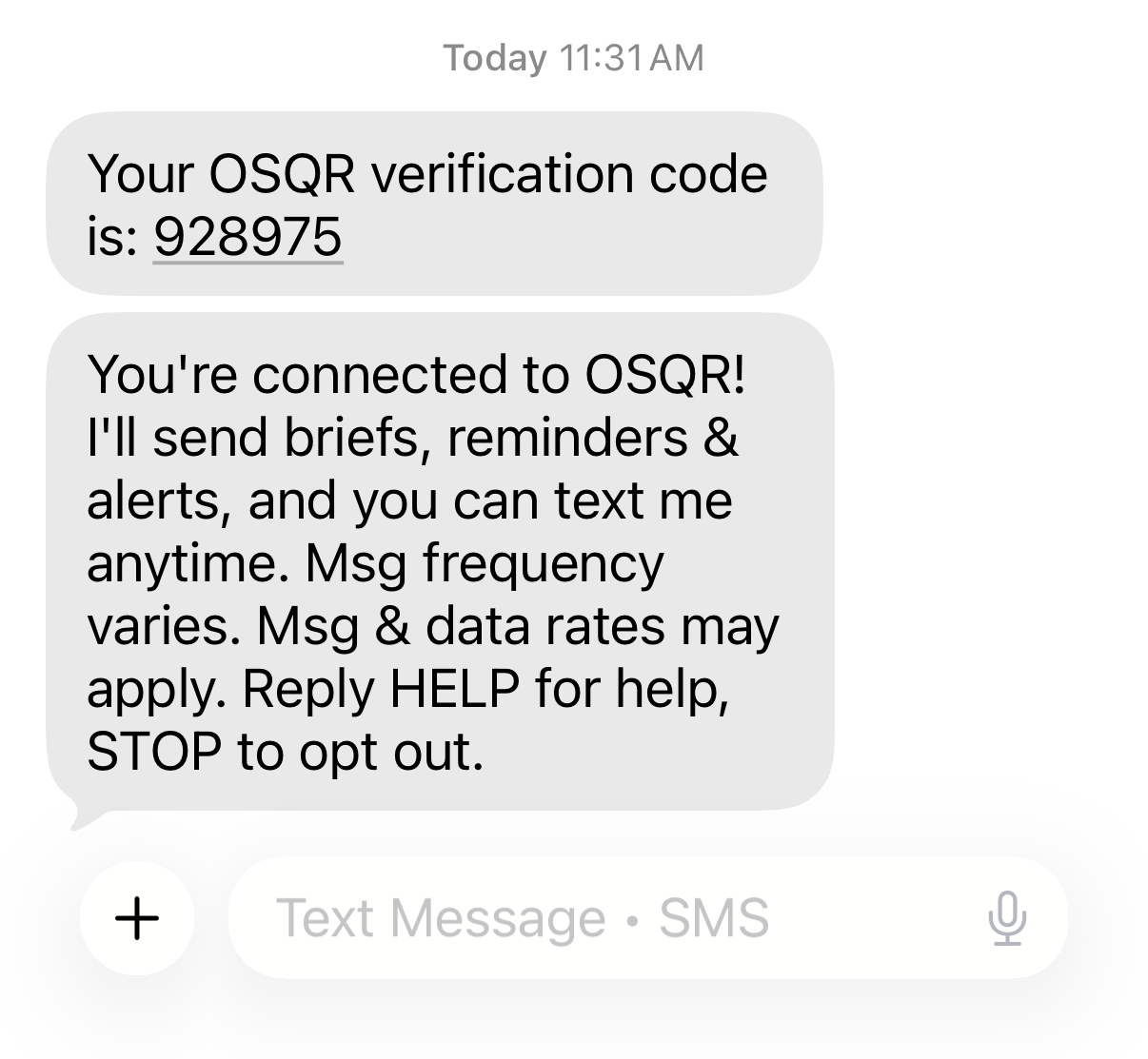
OSQR sends a 6-digit code to the number the user entered. The user must enter that code to prove they own the number — a second, active confirmation of consent.
4Verification code + welcome confirmation
The user receives the verification code and, once verified, a welcome confirmation: "You're connected to OSQR! I'll send briefs, reminders & alerts, and you can text me anytime. Msg frequency varies. Msg & data rates may apply. Reply HELP for help, STOP to opt out."
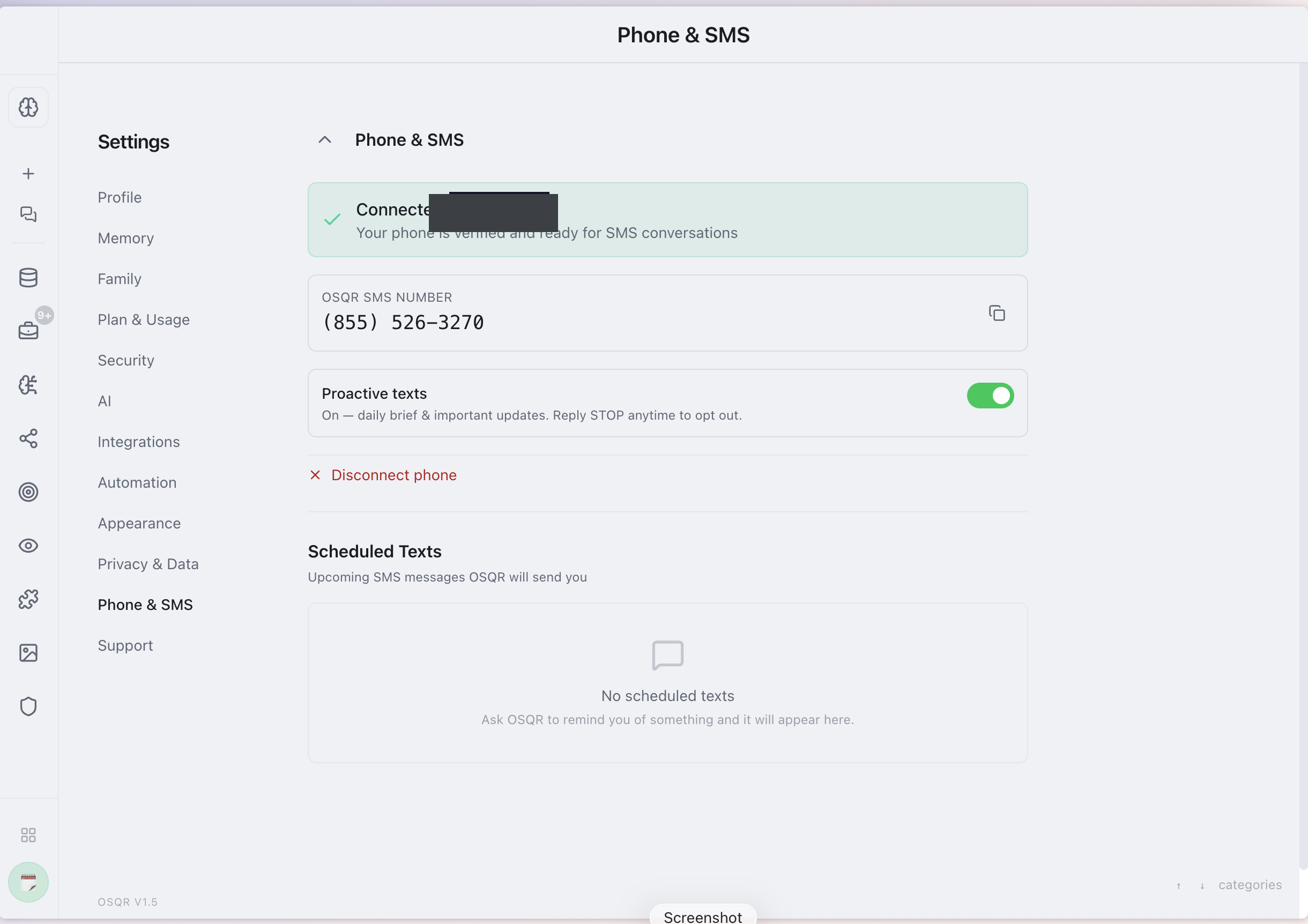
5Connected & verified
Once verified, the number is connected. The user can toggle proactive texts on or off at any time, and can disconnect their number whenever they choose.